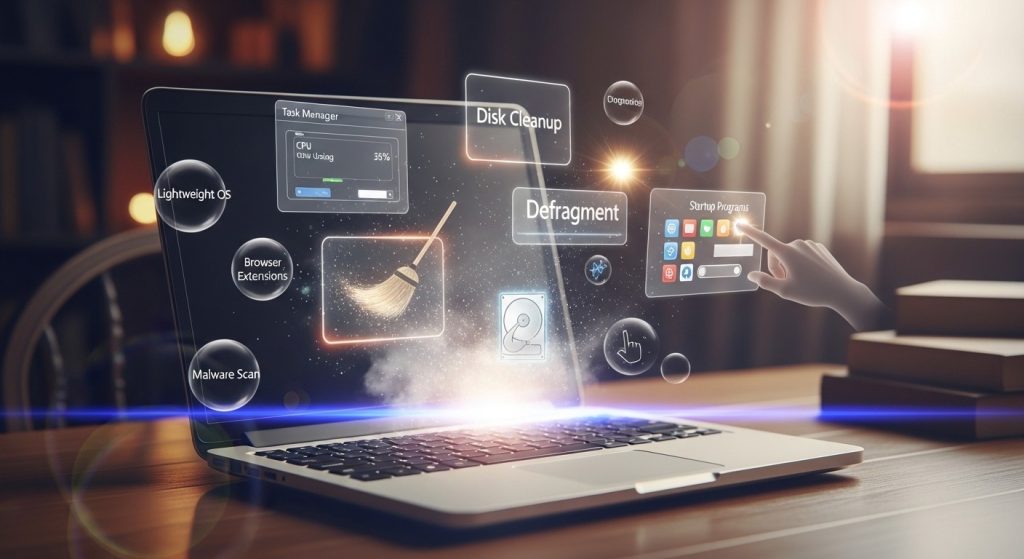
Image: https://drive.google.com/file/d/18SZQNQbcD51QZna_5_E9wcNLNqYvOaBc/view?usp=sharing
A sluggish laptop can turn basic tasks into frustrating experiences, from slow boot times to lagging browsers. As more users look for cost-effective and sustainable tech solutions, used laptops are in high demand, especially among students and remote professionals. However, many assume the only fix for poor performance is buying new hardware. In reality, that’s not always necessary. Most slowdowns stem from software inefficiencies, clutter, and neglected maintenance. With regular optimization techniques like disabling startup programs, clearing temporary files, and managing background processes, you can significantly improve performance without spending money on upgrades. The good news is that simple software adjustments can extend your laptop’s usable life and restore responsiveness.
Understanding Performance Issues in Used Laptops
What causes old laptops to run slow
Your laptop’s RAM capacity plays a major role in performance. When you run more programs than available memory can handle, the system resorts to using your hard drive as virtual memory, which operates much slower than RAM. This swapping between RAM and disk creates noticeable lag during multitasking.
Hard drive health matters too. Your drive requires at least 10-20% free space to function properly. A nearly full drive forces the system to work harder locating and storing files. Traditional hard drives also suffer from fragmentation over time, scattering file pieces across the disk and slowing data retrieval.
Background processes drain resources silently. Programs that launch at startup consume CPU and memory even when you’re not actively using them. Add outdated operating systems missing performance optimizations, malware consuming resources in the background, and overheating causing thermal throttling, and you’ve got a perfect storm for slowdowns. Power Saver mode, while extending battery life, intentionally reduces performance to conserve energy.
Hardware vs software bottlenecks
A bottleneck occurs when one component hits its performance limit and restricts the entire system. Hardware bottlenecks happen when physical components can’t keep up. If your CPU usage consistently reaches 100% while other components remain underutilized, you’ve identified a CPU bottleneck. Memory bottlenecks show up as excessive disk swapping when RAM fills up.
Software bottlenecks stem from inefficient code, memory leaks, or poor resource allocation within applications. Task Manager reveals which type you’re facing. Monitor CPU, memory, and disk usage during slow periods. The component maxed out at 100% while others sit idle is your bottleneck.
In reality, older laptops often suffer from software issues rather than failing hardware. Computers don’t slow down simply because they age. Their internal clocks run at constant speeds regardless of age. What changes is the accumulated software clutter and outdated configurations.
When optimization works best
Software optimization delivers the best results when your hardware still meets basic requirements but inefficiencies bog down the system. If Task Manager shows high disk usage from background apps or startup programs, optimization will help significantly. Similarly, clearing fragmented drives and removing malware can restore responsiveness without hardware changes.
Older devices with truly outdated hardware may not see dramatic improvements from software fixes alone. When your processor fundamentally can’t handle modern software demands, no amount of cleanup will bridge that gap. However, in many cases, proper maintenance extends usability considerably, which explains why cost-effective laptops for students and professionals remain practical choices when properly optimized.
Essential Software Optimization Methods
Remove startup programs slowing boot time
Programs that launch automatically consume memory and CPU from the moment Windows loads. Task Manager shows exactly which apps slow your boot process. Press Ctrl + Shift + Esc, select the Startup tab, and check the “Startup impact” column. High-impact apps deserve immediate attention.
Right-click any program you don’t need at startup and select Disable. Common culprits include Microsoft Teams, which loads multiple services before you’ve even checked email, and Copilot, which runs continuously in the background. Disabling these doesn’t uninstall them; you can still launch them manually when needed.
Delete temporary files and cache
Temporary files accumulate over time and consume valuable storage space, causing your laptop to run slower than usual. Windows creates these files while installing apps, loading web pages, and running updates.
Open Settings, select System, then Storage, and click “Free up space now”. Windows scans and lets you choose which temporary files to delete. Storage Sense automates this process by running cleanup on a schedule you set.
Uninstall unnecessary programs
Bloatware from fresh Windows installs runs quietly in the background, consuming system resources and slowing startup times. Press Windows + I, go to Apps, then Installed apps. Find programs you never use, click the three dots, and select Uninstall. Third-party antivirus programs like Norton and McAfee prove less useful than Windows Security while hogging unnecessary system memory.
Run disk cleanup tools
Disk Cleanup removes temporary files older than 7 days by default. Search for “Disk Cleanup,” select your drive, and review the file categories. Click “Clean up system files” for additional options including Windows update files and previous installations. This tool has helped users maintain systems since Windows 98.
Disable Windows visual effects
Visual effects monopolize system resources, causing devices to run slower and impacting battery life on older machines. Press Windows + R, type sysdm.cpl, click the Advanced tab, then Settings under Performance. Select “Adjust for best performance” to disable all animations. Your device will feel faster immediately as windows minimize and maximize instantly.
Update drivers and operating system
Windows Update automatically downloads recommended drivers for network adapters, printers, and video cards. These updates include performance improvements and fixes. Check Settings > Windows Update > Advanced options > Optional updates for additional driver updates that may help performance.
Advanced Performance Tweaks Without Hardware Upgrades
Optimize browser settings and extensions
Browser extensions consume CPU and memory on every page you load. Open Chrome’s Task Manager with Shift+Esc to identify resource-heavy extensions. Remove ones you rarely use. Chrome’s Memory Saver offers Moderate, Balanced, and Maximum modes that deactivate inactive tabs to free memory. Enable hardware acceleration in Settings > System if you have a dedicated GPU, as it offloads work from your CPU. Clear cached data periodically, but avoid doing it too frequently since caches speed up page loads.
Adjust virtual memory settings
Virtual memory extends physical RAM by using hard drive space as overflow. Press Windows + R, type sysdm.cpl, go to Advanced > Performance Settings > Advanced > Virtual Memory > Change. Uncheck “Automatically manage paging file” and select Custom size. Set Initial Size to 1.5 times your RAM and Maximum Size to 3 times your RAM. For 8GB RAM, use 12,288 MB initial and 24,576 MB maximum. Click Set, then OK, and restart.
Use lightweight application alternatives
Replace resource-heavy defaults with efficient alternatives. VLC Media Player handles all formats without extra codecs while using minimal resources. Notepad++ offers syntax highlighting in just 17MB. For file searches, Everything delivers instant results using almost no RAM. These cost-effective laptops for students and professionals benefit significantly from such optimizations.
Control background apps and services
Background apps drain battery even when closed. Go to Settings > System > Power & battery > Battery usage. For each app, select Manage background activity and choose “Never” for non-essential apps. Press Windows + R, type msconfig, click Services tab, check “Hide Microsoft Services,” then uncheck unnecessary third-party services.
Set power mode to high performance
Open Control Panel > Power Options and select High Performance. This plan maximizes system responsiveness by preventing CPU throttling and keeping components at full speed. On laptops, click the battery indicator and slide to “Best performance”. This uses more energy but eliminates performance lag during intensive tasks.
Regular maintenance habits
Restart weekly to clear memory leaks. Run disk cleanup monthly. Review Task Manager quarterly to catch new resource hogs. Keep Windows updated for performance patches. Avoid leaving your laptop plugged in continuously, as it reduces battery lifespan.
The Smart Choice: Buying and Maintaining Used Laptops
Are used laptops worth it for your needs
Choosing between used and refurbished laptops requires understanding key distinctions. Used laptops sold by individuals offer no guarantee of functionality or security. In contrast, refurbished laptops undergo extensive testing and repairs by trained technicians. Manufacturer-refurbished devices from Dell, Apple, and Lenovo provide the same warranties as new computers, with Dell offering a 100-day limited warranty. You’ll save 20-70% compared to new models, with some refurbished laptops priced up to 50% less. A high-end ThinkPad that sold for $1,400 two years ago now costs around $500 while offering faster processors and better screens than budget new laptops.
Best refurbished laptops for performance
Look for laptops with 8th generation Intel CPUs or newer and GTX 10xx-series GPUs. Dell Optiplex, Latitude, and Pro series make excellent refurbished choices. Prioritize Grade A machines from Microsoft Authorized Refurbishers, which include genuine Windows copies. Check for IPS displays with 1920×1080 resolution and at least 16GB RAM if you run multiple programs.
Long-term value and sustainability
Manufacturing one new laptop creates 331 kilograms of carbon emissions and consumes 190,000 liters of water. Buying refurbished prevents thousands of devices from reaching landfills annually while supporting the circular economy.
Conclusion
Software optimization delivers results that most users underestimate. Rather than assuming your used laptop needs expensive hardware upgrades, apply the techniques you’ve seen here to restore responsiveness and extend its usable life.
You can tackle slowdowns without spending money. Regular maintenance, smart settings adjustments, and removing resource hogs make a measurable difference. Your laptop likely has more potential than you realize; it just needs proper optimization to unlock it.
FAQs
Q1. What are the most effective ways to speed up an old laptop without replacing parts? Start by removing unnecessary startup programs through Task Manager, delete temporary files using Disk Cleanup, uninstall bloatware and unused applications, disable Windows visual effects for better performance, and keep your operating system and drivers updated. These software optimizations can significantly improve responsiveness without any hardware investment.
Q2. Can reinstalling the operating system make my laptop faster? Yes, reinstalling your operating system can dramatically improve performance by removing accumulated software clutter, bloatware, and potential malware. A fresh installation gives you a clean slate with only essential programs, which reduces resource consumption and can restore your laptop to near-original performance levels.
Q3. How much free space does my hard drive need to run efficiently? Your hard drive requires at least 10-20% free space to function properly. When storage is nearly full, the system works harder to locate and store files, causing noticeable slowdowns. Regularly clearing temporary files and uninstalling unused programs helps maintain adequate free space for optimal performance.
Q4. Should I consider switching to Linux to improve my old laptop’s performance? Switching to a lightweight Linux distribution can significantly boost performance on older laptops, as Linux typically uses fewer system resources than Windows. However, keep in mind that you’ll need to learn a new operating system, and some Windows applications and games may not be compatible without additional configuration.
Q5. Is buying a refurbished laptop a good alternative to fixing an old one? Refurbished laptops offer excellent value, costing 20-70% less than new models while providing manufacturer warranties and professional testing. They’re particularly worthwhile if your current laptop has fundamental hardware limitations that software optimization can’t overcome, and they support sustainability by reducing electronic waste.